

Key Takeaways
- Wireless sharing on network infrastructure that varies in quality
- Different devices use different wireless standards and not all are compatible
- Guest devices present the hardest challenge because they are outside IT control
- Backup wired connections should always exist even in wireless-first rooms
- System selection should match actual use patterns, not ideal scenarios
- User experience depends on setup simplicity as much as technical capability
1. Why Network Configuration Matters
Most wireless presentation systems use the building's network infrastructure. The laptop connects to WiFi. The room display connects to the network. Data travels between them through access points, switches, and sometimes firewalls.
Any weakness in this chain causes problems.
Overloaded access points slow data transmission. High-resolution screen sharing requires substantial bandwidth. When the access point is also serving 30 laptops and phones in the surrounding area, bandwidth competition creates lag and dropped frames.
Network segmentation creates connectivity barriers. IT departments often place guest devices on separate networks from room systems for security reasons. This makes sense from a security perspective but creates problems for wireless presentation. If the system cannot communicate across network segments, guests cannot connect.
Firewall rules can block the protocols wireless systems use. A system that works perfectly for internal users may fail completely for external visitors if the necessary ports are blocked on the guest network.
Before specifying a wireless system, verify that network infrastructure can support it. This means conversations with IT about bandwidth, segmentation, and firewall rules. The best hardware in the world cannot overcome network configuration problems.
2. The Protocol Problem
Wireless presentation involves multiple competing standards. AirPlay works with Apple devices. Miracast works with Windows and some Android devices. Chromecast uses its own protocol. Proprietary systems from AV manufacturers add more options.
No single protocol works with everything.
A room system that supports only AirPlay is useless when a Windows user needs to present. A system that supports only Miracast fails Apple users. Covering all bases requires either a system that supports multiple protocols or acceptance that some devices will not connect wirelessly.
Guests arriving with unfamiliar devices create the hardest scenarios. Their laptops may not support the room's protocol. They may be running operating systems the room system does not recognize. The meeting stalls while everyone troubleshoots.
Selecting a system that supports the widest range of protocols reduces these failures. Understanding which protocols matter for your typical users helps prioritize what the system must support versus what would be nice to have.
3. App Requirements and Guest Friction
Some wireless systems require an app installed on the presenting device. Internal users can have this app pre-installed on company laptops. IT can push it through device management. Everyone arrives prepared.
Guests cannot be prepared in the same way.
Asking a client to download an app before they can present creates friction. Some corporate laptops prevent users from installing software without IT approval. Some guests are unwilling to install unfamiliar applications on their devices. The meeting stalls.
Systems that work without apps, using native device protocols, reduce this friction. AirPlay and Miracast are built into operating systems. Users do not need to install anything. The connection process uses familiar interfaces.
The tradeoff is capability. App-based systems often offer features native protocols lack, such as annotation, multi-user display, or integration with room control systems. Deciding what matters most requires understanding how the room will actually be used.
For rooms that frequently host external visitors, minimizing guest friction typically takes priority over advanced features. The fanciest features mean nothing if guests cannot connect.
4. Latency and Video Playback
Wireless transmission introduces latency. A small delay between action on the laptop and display on the screen. For most uses, this delay is imperceptible.
For static presentations, latency is unnoticeable. Click a slide, the slide appears. The fraction-of-a-second delay does not matter.
For video playback, latency creates problems. Audio and video can desynchronize. Lips move before or after sound arrives. Smooth motion becomes choppy. Compressed video artifacts become visible. The experience degrades noticeably.
Network congestion makes latency worse. During peak usage hours, delays increase. A system that plays video smoothly at 7 AM may stutter at 2 PM when everyone is online.
If video playback is a frequent use case, wired connections remain more reliable. Wireless systems continue to improve, but physics imposes limits on what wireless transmission can achieve compared to a direct cable connection. For video-heavy presentations, keep a cable available.
5. Security Considerations
Wireless connections create potential security exposure. Data travels over the air instead of through a cable. Without proper encryption, that data could be intercepted.
IT departments have legitimate concerns about wireless presentation systems. Screen sharing may expose confidential information. Connections to room systems may create network vulnerabilities. Unauthorized users could potentially connect and disrupt meetings.
Enterprise-grade wireless systems include security features to address these concerns. Encrypted transmission protects data in transit. PIN codes prevent unauthorized connections. Integration with enterprise authentication systems allows IT to control access.
Consumer-grade systems often lack these features. They may work for personal use but fail enterprise security requirements.
The security conversation should happen before system selection, not after. Understanding what IT requires and selecting systems that comply prevents the frustration of installing equipment that cannot be used.
6. The Case for Keeping Cables
Wireless-first does not mean wireless-only.
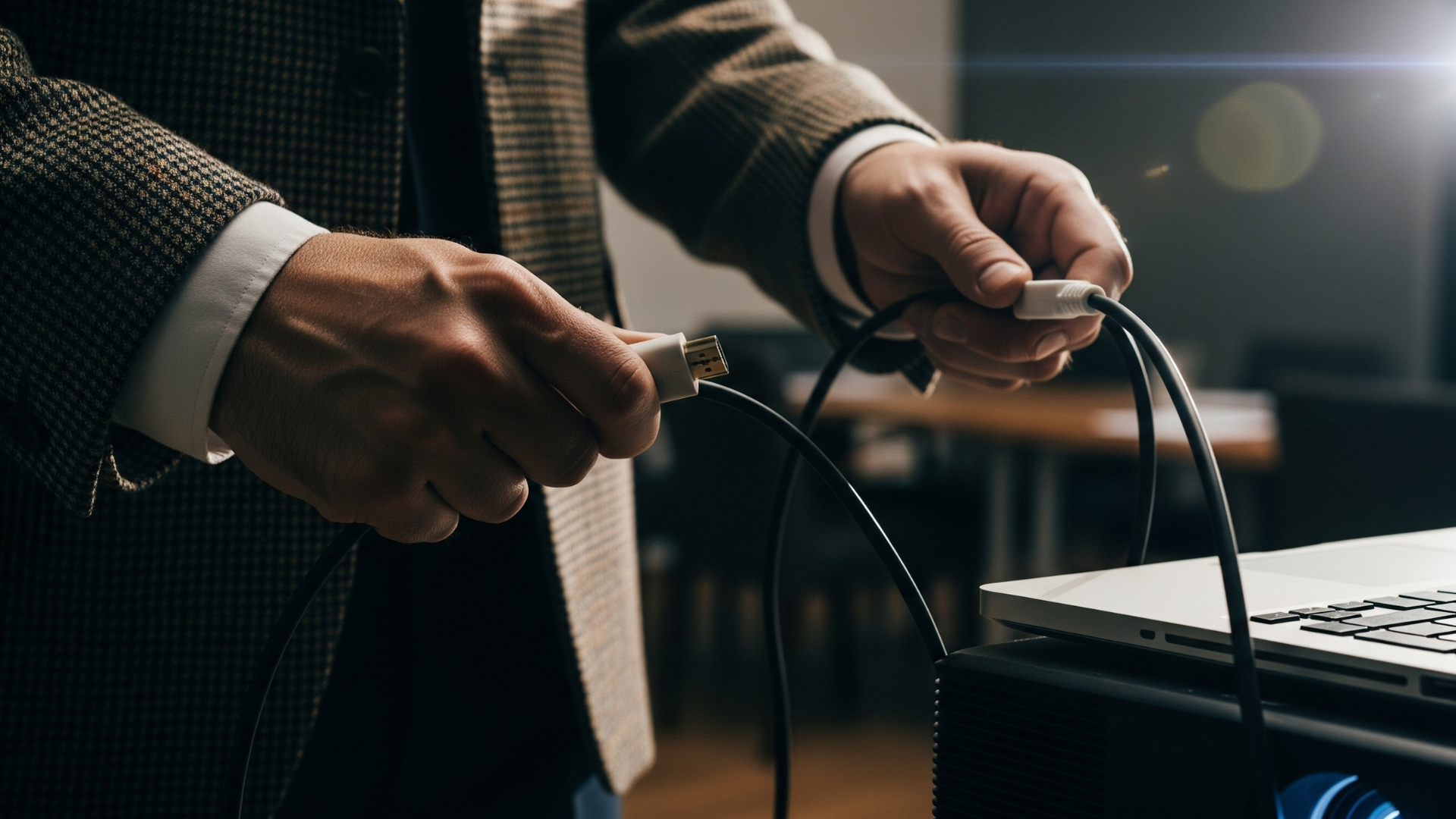
Every room should have a wired backup. An HDMI cable that reaches the table. A connection point that any laptop can use without apps, without network dependencies, without compatibility questions.
Cables are not elegant. They clutter tables and wear out over time. But they work. When wireless fails, a cable saves the meeting.
Some organizations resist keeping cables visible because they look messy. Solutions exist. Retractable cables that disappear when not in use. Floor boxes with connection points at the table. Wall plates near seating positions. Cable management that keeps connections available without visual clutter.
The goal is reliability, not technology for its own sake. If a wired connection is faster and more reliable for a particular situation, it should be available. Nobody wins a prize for using wireless when a cable would have worked better.
7. Selecting the Right System
Wireless presentation systems range from simple screen mirroring devices to enterprise platforms with management features, analytics, and multi-room control. The right choice depends on use patterns.
Rooms used primarily by internal staff with standardized laptops can work with simpler systems. Everyone has the app. Everyone knows the process. Compatibility is predictable. The system can optimize for features rather than universal compatibility.
Rooms that host external visitors need broader compatibility and simpler connection processes. The system must work for devices IT has never seen, operated by people who have never used the room. Simplicity and protocol support matter more than advanced features.
Rooms in secure environments need systems that meet IT security requirements. Encryption, authentication, and audit logging may be mandatory. The selection process must include IT review.
Rooms where video playback matters need systems with low latency and high bandwidth throughput. Testing with actual video content reveals whether performance meets expectations.
Specifying a system before understanding use patterns leads to mismatches. The expensive enterprise system is wasted in a room that only internal staff use. The simple consumer device fails in a client-facing space.
FAQs
Is it worth investing in wireless presentation if it fails so often?
It depends on who uses the room. For internal teams with managed devices, wireless works reliably once configured properly. For rooms hosting guests or clients with unknown devices, wireless adds convenience but should never be the only option. The investment makes sense when paired with a wired backup.
Should we prioritize wireless compatibility or advanced features?
Compatibility. A system with annotation tools and multi-user display means nothing if half your users cannot connect. For rooms with external visitors, choose the system that supports the widest range of devices and protocols. Add features only after compatibility is covered.
Can IT fix the network issues causing wireless problems?
Often yes. Many wireless failures trace back to network segmentation, firewall rules, or overloaded access points. A conversation with IT before selecting a system prevents most of these issues. If problems persist after installation, IT can usually adjust configurations to improve reliability.
Make Wireless Sharing Work Reliably
Wireless presentation can deliver the convenience it promises, but only when the system matches the use case and the infrastructure supports it. Expecting wireless to work perfectly for every situation leads to frustration.

.png)
